
Tile Calculator: Tile, Box, Grout, and Adhesive Estimate
Build a checkable tile material estimate from measured surface area, tile face dimensions, a visible allowance, pieces per box, and product-specific coverage information.
Example Projects
Tiling Parameters View Results
For standard Floor Tiling, a 10% waste factor is recommended. Large-format tiles (12"x12" or larger) are standard. Use a 1/2" square notch trowel for tiles >12" to ensure full mortar coverage.
Tile Layout Pattern
Tile Parameters
Grout, Adhesive & Pricing
Calculations Results
View Calculation Breakdown
Detailed Measurements Live
| Net Tiling Area | 0 sq ft |
| Tiles to Order | 0 tiles |
| Boxes to Order | N/A |
| Grout Dry Powder Weight | 0.0 lbs |
| Thinset bags (50 lb) | 0 bags |
| Waste Allowance | 10% |
How this was calculated:
Fill in the dimensions above to output step-by-step formula logs...
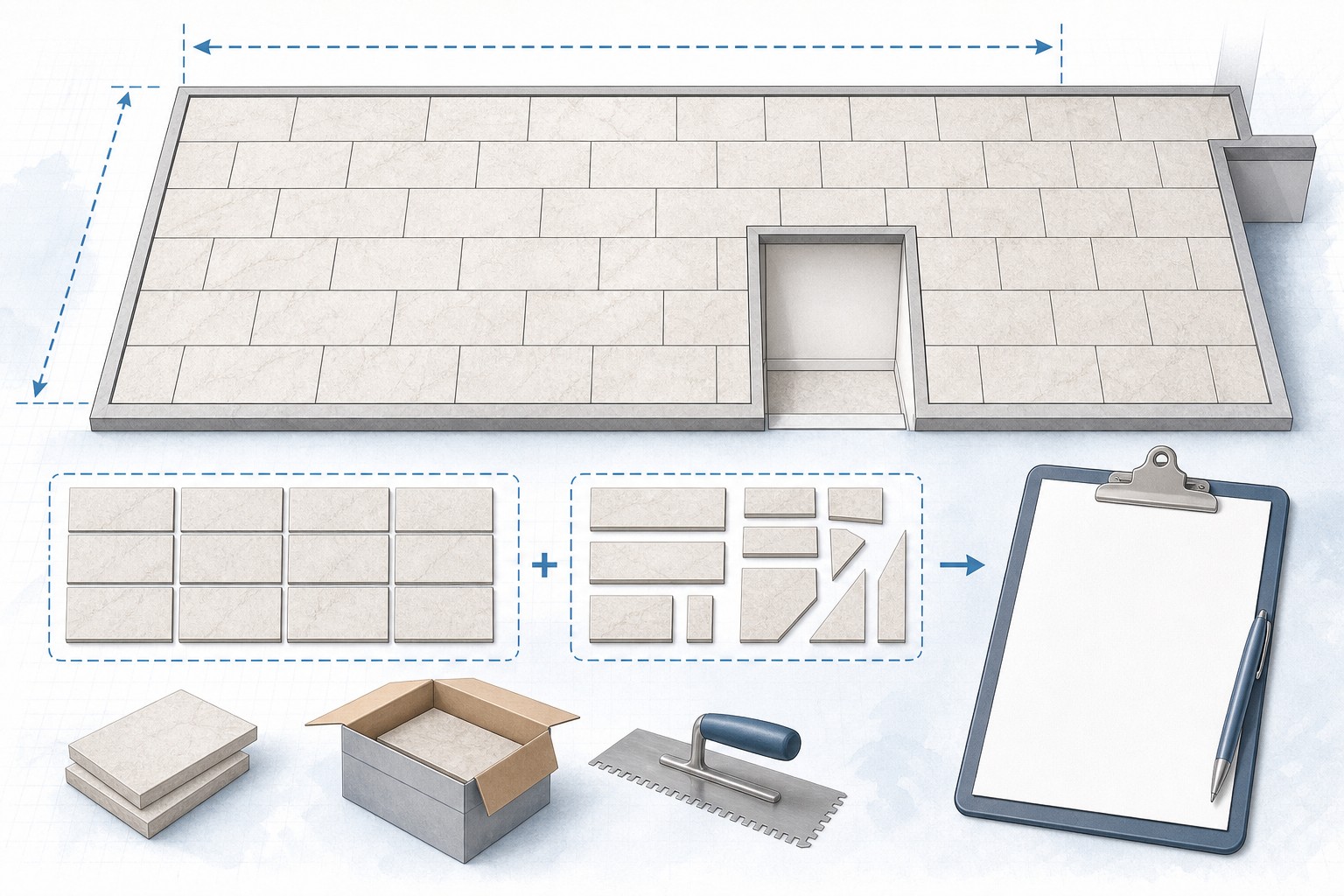
Check the method before you use the estimate
This page documents the formula, assumptions, and any specific external sources used for this tool.
See the methodPlanning estimate What this result can and cannot tell you
Preliminary material-planning tool only. Verify the exact tile dimensions, pieces per box, selected grout and adhesive coverage, package sizes, installation system, supplier quote, and project requirements before ordering or installing.
How the Tile Calculator works
These notes describe the calculation used on this page and the assumptions that can change a real-world result.
Tile face area in square feet = entered tile length in inches × entered tile width in inches ÷ 144. Base tiles = tiled area ÷ tile face area. Rounded tiles = ceil(base tiles × (1 + entered allowance ÷ 100)). Boxes = ceil(rounded tiles ÷ entered tiles per box).
Assumptions on this page
- For a standard area, the calculator multiplies entered length and width after converting them to feet. Custom-area mode adds the entered rectangular areas. It does not automatically subtract openings, fixtures, niches, borders, transitions, or irregular geometry.
- Tile count uses the entered tile face dimensions only. The grout-joint setting is not included in the tile-count geometry, so the count must be checked against a scaled layout, actual tile dimensions, and package contents.
- Project-type and pattern controls set planning allowance presets in the current interface. They do not analyze the room, the starting point, tile module, cuts, breakage, or reusable offcuts, and they are not universal installation recommendations.
- The displayed grout quantity is a provisional geometric model that uses entered tile length, width, thickness, joint width, total area, a fixed 0.05787 lb per cubic inch density factor, and an added 10%. It does not use the density or coverage of the selected grout product.
- The displayed adhesive-bag count is ceil(tiled area × 1.10 ÷ the selected or custom coverage). Built-in coverage options are 95, 90, 70, 45, or 35 square feet per 50 lb bag; they are calculator presets, not trowel, mortar, or installation instructions.
- With costs enabled, tile cost uses boxes times entered cost per box when both are available; otherwise it uses rounded tiles times entered cost per tile. Grout cost uses displayed pounds times entered price per pound, and adhesive cost uses displayed bags times entered price per bag.
- This calculator is not a substrate, waterproofing, movement-joint, structural, safety, product-compatibility, or code-compliance determination.
Sources used on this page
- NIST Guide to the SI, Appendix B.9: Area conversion factors Supports the calculator's area conversions and the use of 144 square inches per square foot.
- MAPEI Tile Grouts Calculator Shows that grout coverage is an estimate affected by the selected product, tile geometry, joint geometry, job conditions, and application method.
- LATICRETE SPECTRALOCK grout planning FAQ Explains that grout coverage varies with tile size, thickness, joint width and depth, tile or stone type, job conditions, and installation method.
Everything behind the Tile Calculator
Formulas, reference charts, and detailed answers — expand any section you need.
Separate the tile, box, grout, and adhesive questions
A tile project has several quantity questions. Keeping them separate avoids a plausible-looking total that hides an unverified assumption.
| Output | What the current tool uses | Required external check |
|---|---|---|
| Rounded tiles | Field area, nominal tile face area, and entered allowance | Scaled layout, actual dimensions, joints, cuts, transitions, and reusable offcuts |
| Boxes | Rounded tile count ÷ entered pieces per box, rounded up | Current label, coverage, actual pack contents, shade or lot, and supplier availability |
| Grout | Generic joint-volume model and fixed density factor | Exact grout product, package size, current manufacturer coverage, tile texture, and installation conditions |
| Adhesive bags | Area with 10% added, divided by selected or custom coverage | Exact product instructions, system compatibility, package size, and approved coverage basis |
| Cost | Visitor-entered prices applied to displayed units | Current quote, taxes, delivery, substrate work, accessories, labor, and scope |
The Tile Calculator uses pieces per box rather than a stated square-foot coverage per box. Check both on the actual package. If the tile dimensions or pack contents change, re-run the input and recheck the layout rather than carrying a previous result forward.
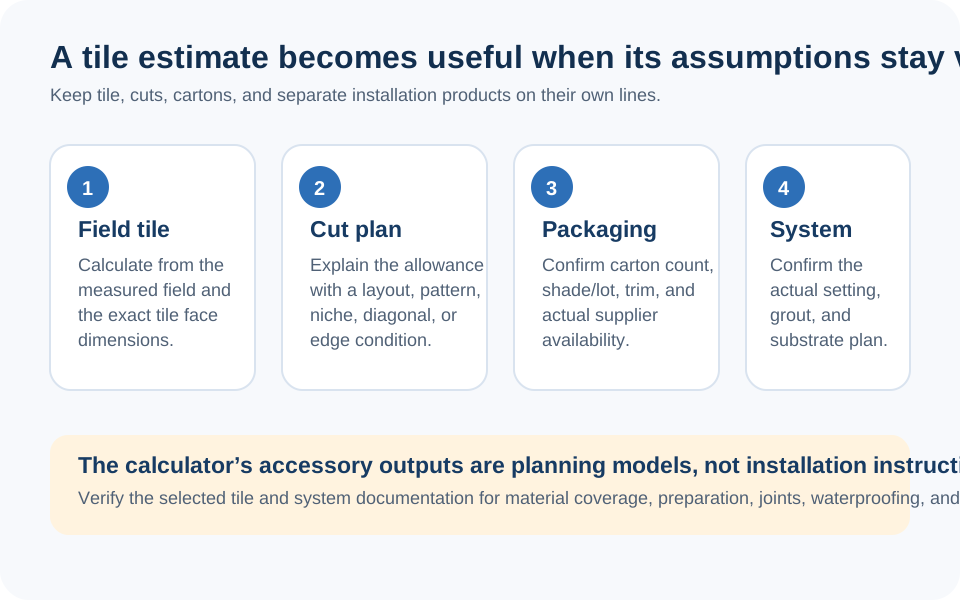
Treat tile quantity as a layout record, not a generic percentage
Tile estimating is strongest when the count can be traced to a layout. Begin with the finished field, draw the first row or centerline, mark openings and transitions, then separate the full-tile field from the cut pieces. The calculator organizes the area and package arithmetic after those decisions are made. It cannot determine whether a surface is suitable, flat, waterproofed, structurally adequate, or compatible with a particular tile, mortar, grout, backer, or movement-treatment system.
Use the companion Tile and Grout guide for a fuller layout and product-coverage workflow. This calculator page explains precisely what the live tool counts and where a product-specific check must take over.
Measure the tiled field and preserve the layout sketch
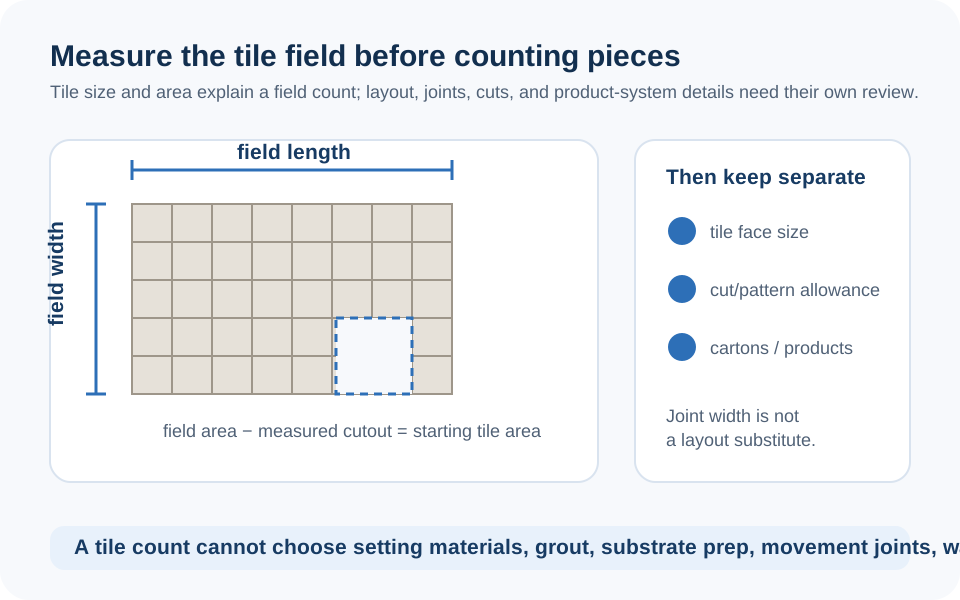
For a simple rectangle, the calculator begins with length × width after converting the entered measurement units to feet. For an irregular floor or wall, divide the field into simple shapes, keep each dimension on the sketch, and add only the regions intended to receive the same tile. Record exclusions such as a window, niche, cabinet footprint, fixture, drain, or transition separately. The current tool does not discover or subtract those features for you.
The NIST conversion table confirms the two unit checks used here: 1 sq ft is 144 sq in and 0.09290304 sq m. Use the NIST reference when reconciling supplier metric and customary information. Keep original measurements rather than relying on a rounded converted display.
Tile count formula and a code-matching example
The tile-count part of the current tool converts entered tile length and width to inches, calculates a rectangular tile face area, divides the measured field by that area, adds the entered allowance, and rounds to a whole tile. It does not include grout-joint width in the tile-count geometry.
Worked calculator example: a 10 ft by 12 ft field is 120 sq ft. An entered 12 in by 24 in tile has a 2 sq ft face area, so the base count is 120 ÷ 2 = 60 tiles. With an entered 10% allowance, the tool adds 6 and rounds to 66 tiles. If the exact package contains 8 tiles, the box calculation is ceil(66 ÷ 8) = 9 boxes.
This is a demonstration of the tool's arithmetic only. It does not establish the suitable tile size, joint, pattern, cut allowance, or box content for a project. In particular, actual tile dimensions, joints, layout starting point, borders, and obstacles can change the practical order even when the face-area calculation is correct.
Make the allowance explainable
The allowance is deliberately visible because it is a project decision. The active pattern cards set the current calculator values to 10% for straight, 12% for brick or basket, and 15% for diagonal or herringbone. Project-type selections also set UI allowance values. Those are presets in this tool, not universal material-order or installation rules, and the calculation does not simulate the exact pattern or cuts.
Instead, write the reason for the entered allowance: the perimeter geometry, centered or shifted starting line, diagonal cuts, a decorative border, penetrations, breakage risk, matching-tile availability, or a chosen spare quantity. A separate spare-material line is often clearer than quietly inflating an unexplained percentage. Use the layout sketch to test whether a narrow edge cut can be avoided or whether offcuts can actually be reused.
Read the grout output as a provisional volume model
The tool's grout result is not a selected-product coverage result. It first calculates a joint-volume proxy from the entered tile length, width, joint width, thickness, and total area. It then multiplies that volume by a fixed factor of 0.05787 lb per cubic inch and adds 10%. The entered field labelled Tile Thickness is used as the depth input in this simplified model.
For the 120 sq ft, 12 in by 24 in example above, with 3/8 in entered thickness and a 1/8 in joint, the current code displays about 6.4 lb. That is a planning result from the fixed model, not a product purchase quantity. The MAPEI grout calculator and LATICRETE's planning guidance both explain that actual coverage depends on the selected product, tile and joint geometry, and job conditions. Use the exact current product documentation before ordering.
Adhesive coverage is a product check, not a trowel instruction
The Adhesive Bags output uses the tiled area plus 10%, divided by the coverage selected in the form, then rounds upward. The built-in coverage choices are 95, 90, 70, 45, and 35 sq ft per 50 lb bag; Custom Coverage uses the number you enter. For the 120 sq ft example, selecting the tool's 90 sq ft per bag option produces ceil(120 × 1.10 ÷ 90) = 2 bags.
That is intentionally only arithmetic. The option names and coverage values do not select a trowel, mortar, substrate treatment, waterproofing system, tile installation method, or coverage requirement for a job. Confirm the exact selected system's manufacturer documentation, packaging, and responsible installer before buying any adhesive or beginning work. Do not convert the calculator's output into an installation instruction.
Cost output and installation boundaries
When costs are enabled, the tool first uses box cost if both a box price and pieces-per-box are entered; otherwise it uses the entered price per tile. It adds grout cost as displayed grout pounds × entered grout price per pound, and adhesive cost as displayed bag count × entered adhesive price per bag. These are unit-price calculations only. They do not include delivery, tax, cutting tools, trim, membranes, backer, surface preparation, disposal, labor, repairs, or contingencies unless you separately account for them.
The same boundary applies to every installation question. This calculator cannot approve a substrate, determine waterproofing, select a mortar or grout, establish movement treatment, assess structural conditions, or confirm local requirements. Resolve those issues from the exact selected system, applicable rules, project documents, and qualified responsible parties before the material estimate becomes an order.
Final quantity and issue-report check
- Confirm each measured tile field and every exclusion against the latest layout sketch.
- Check actual tile dimensions, pieces per box, carton coverage, lot or shade information, and availability with the supplier.
- Keep base tile count, allowance, planned spare material, and box rounding as separate lines.
- Use the exact selected grout and adhesive documentation for a final product-coverage check.
- Verify all substrate and installation-system decisions before purchase or work begins.
If a calculator formula, label, or result appears wrong, use the contact page to report it with the inputs, browser/device, and expected result. The site team can investigate calculator behavior; installation, product-selection, and code questions belong with the responsible project professionals.
Frequently Asked Questions
How does the Tile Calculator calculate tile quantity?
It divides measured tiled area by the entered rectangular tile face area, applies the allowance percentage shown in the form, and rounds up to a whole tile. The grout-joint setting is not included in the tile-count geometry, so confirm the result against an actual layout.
How does the calculator calculate boxes of tile?
It divides rounded tiles by the entered tiles-per-box count and rounds up. Verify the exact box contents and stated coverage on the current product package before ordering.
Is the waste percentage a recommendation for every tile project?
No. Pattern and project selections set calculator presets, but they do not analyze your layout. Choose and document an allowance based on the actual field, cuts, breakage risk, spare-material plan, and product availability.
Does the grout result use my selected grout product's coverage?
No. The current calculator uses a fixed geometric model and density factor. Use the selected grout manufacturer's current calculator or data sheet for a final product quantity.
Does the adhesive-bag result select the right trowel or mortar for my tile?
No. It divides area by a selected or custom coverage value and rounds up. The coverage options are planning presets, not installation instructions. Follow the exact selected system's manufacturer documentation.
Can I use this for multiple areas?
Yes. In Custom Project mode, the calculator sums the rectangular areas you enter. Keep openings, different surfaces, transitions, and irregular shapes visible in a separate takeoff record.
Does the optional cost result include full installation cost?
No. It only applies the price inputs to the displayed tile, grout, and adhesive units. It does not automatically include labor, tax, delivery, preparation, waterproofing, trims, tools, or other project costs.
How can I report an issue with the Tile Calculator?
Use the contact page and include your inputs, device or browser, displayed result, and expected result. That gives the site team what it needs to reproduce and investigate a calculator issue.