Excavation Calculator

Turn a measured excavation outline, entered depth, editable soil-expansion input, and selected hauling capacity into a transparent in-place and loose-volume planning worksheet.

Example Projects

House Foundation

40' × 30' Rect • 4' Depth • Clay Soil

Basement Dig-out

40' × 30' Rect • 8' Depth • Mixed Soil

Swimming Pool

32' × 16' Rect • 6' Depth • Sand Soil

Utility Trench

100' × 2' Trench • 3' Depth • Topsoil

Excavation Geometry View Results

Soil Parameters

25%

Hauling Capacity

Calculations Results

3D Excavation Cut Visualizer
In-Place Soil Volume
0 cu yd
0 cu ft 0 m³
Undisturbed volume of soil to dig (neat line dimensions).
Expanded Loose Volume 0 cu yd Excavated dirt expands after removal.
Estimated Soil Weight 0 Tons Determined by soil type density specs.
Hauling Loads Required 0 loads Based on loose volume and truck capacity.

Dump Truck Loads Estimator

Compare required truckloads across standard commercial dump truck configurations.

Truck Classification Capacity (cu yd) Loads Required
Small Dump Truck 5 - 10 Yards 0 loads
Standard Dump Truck 10 - 16 Yards 0 loads
Large Dump Truck 16 - 20 Yards 0 loads
View Calculation Breakdown

Detailed Requirements Live

In-Place Volume 0 cu yd
Loose Volume 0 cu yd
Estimated Soil Weight 0 Tons
Selected Truckloads 0 loads

How this was calculated:

Enter parameters above to display detailed step-by-step mathematical calculations logs.

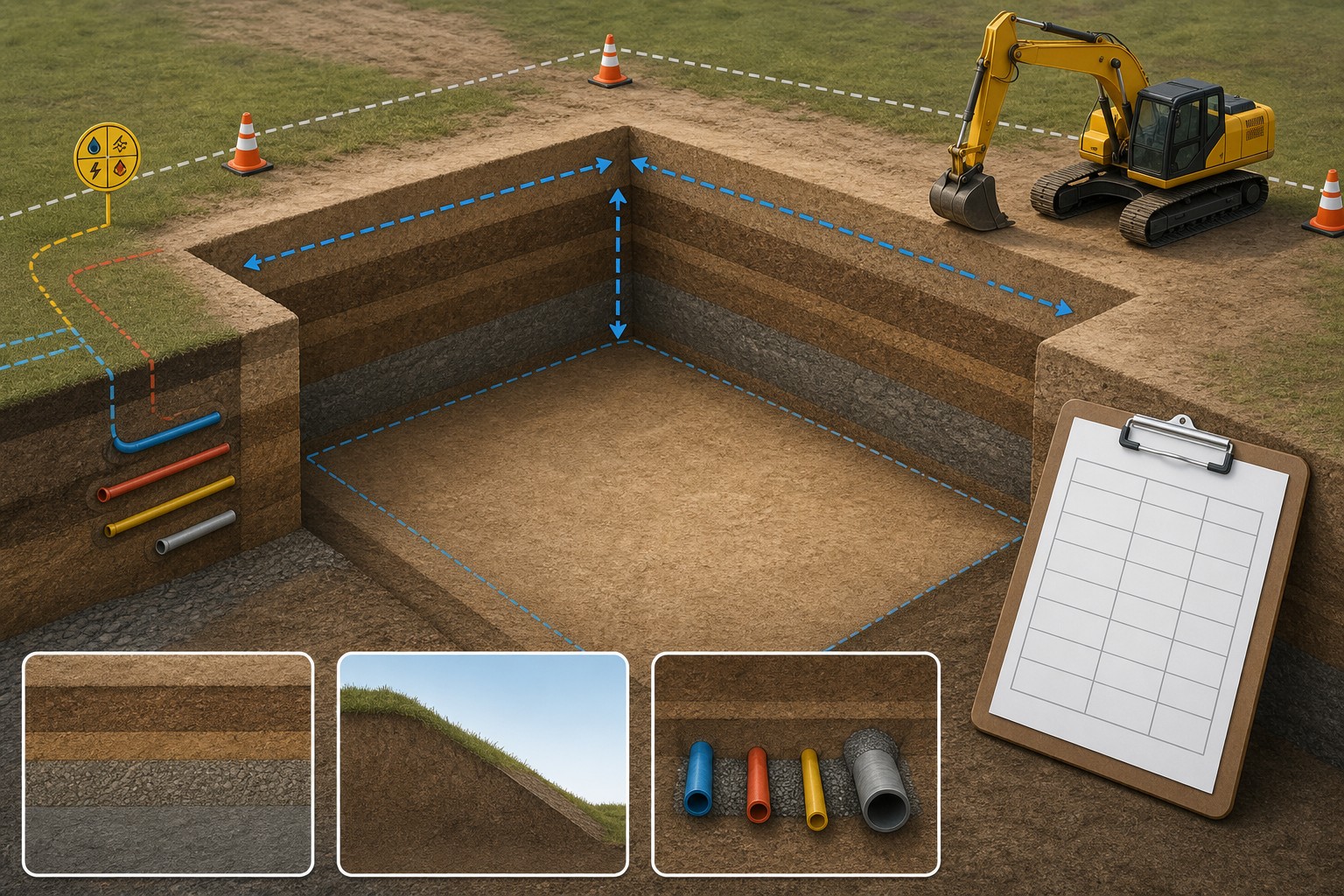
Illustration of a measured excavation outline with depth callouts, a quantity worksheet, and separate in-place and loose-volume notes.
An excavation estimate starts with a measurable cut boundary and keeps in-place volume, loose material, and hauling assumptions separate.
Transparent calculator

Check the method before you use the estimate

This page documents the formula, assumptions, and any specific external sources used for this tool.

See the method
Planning estimate What this result can and cannot tell you

Planning quantity tool only. It does not establish excavation limits, soil conditions, utility clearance, permits, protective systems, access, water control, spoil placement, hauling legality, disposal acceptance, construction method, or site safety. Confirm those matters with the applicable authorities, utility-location process, carrier, and responsible project professionals before work.

Read the full site disclaimer.

Found an error or unclear result? Tell us what happened so it can be investigated.
Calculator feedback

Report an issue with Excavation Calculator

Your report is saved for the Octa Calculator team to review. Do not include sensitive financial, medical, or personal information.

This site is protected by reCAPTCHA and the Google Privacy Policy and Terms of Service apply.

Method & sources

How the Excavation Calculator works

These notes describe the calculation used on this page and the assumptions that can change a real-world result.

In-place geometry, loose-volume planning, and selected-capacity load arithmetic For a rectangular or trench zone, in-place volume (ft³) = length (ft) × width (ft) × depth (ft). In-place yd³ = ft³ ÷ 27. Loose yd³ = in-place yd³ × (1 + selected swell percentage ÷ 100). Displayed load count = ceil(loose yd³ ÷ selected truck capacity).

Assumptions on this page

  • Rectangle and trench modes multiply the entered length, width, and depth. Circular mode uses pi × radius squared × depth; custom-area mode multiplies the entered square-foot area by depth. Footing mode also multiplies by the entered quantity.
  • The tool's selected soil categories, density values, and swell ranges are editable planning-model inputs. They are not a field classification, test result, disposal profile, or universal allowance.
  • The displayed weight model multiplies in-place cubic yards by the selected interface density. It does not establish the actual moisture condition, material mass, truck payload, or legal transport limit.
  • The displayed haul count rounds loose cubic yards up against the selected 8, 14, or 18 cubic-yard capacity. Confirm the carrier's actual vehicle, permitted payload, loading policy, route, and delivery or disposal requirements independently.
  • Optional digging cost uses entered in-place-yard pricing; optional disposal cost uses entered loose-yard pricing; optional labour and equipment values are added as entered. None are live prices or a bid.

Sources used on this page

  • NIST Handbook 44, current edition Provides the current NIST reference that includes general measurement-unit tables used to check the calculator's cubic-foot, cubic-yard, and metric conversions.
  • OSHA Trenching and Excavation A U.S. safety resource that illustrates why an excavation quantity cannot determine protective systems, entry conditions, soil classification, or a safe work plan.
  • 811 Before You Dig A U.S. utility-location awareness resource. Use the applicable local utility-location process because services, timing, and responsibilities vary by place and project.
Guide & Reference

Everything behind the Excavation Calculator

Formulas, reference charts, and detailed answers — expand any section you need.

Read each calculator output as a different question

OutputHow this calculator creates itWhat it cannot decide
In-place volumeEntered geometric area multiplied by entered depth, converted from cubic feet to cubic yards or metresThe correct cut limit, depth, or excavation shape
Loose volumeIn-place volume multiplied by the selected swell inputA verified soil expansion, disposal classification, or receiving quantity
WeightIn-place cubic yards multiplied by the selected interface densityActual moisture, truck payload, legal load, or scale-ticket weight
LoadsLoose cubic yards divided by selected capacity and rounded upVehicle availability, safe loading, route restrictions, or carrier approval
Optional costUser-entered digging and disposal prices applied to different volume bases, plus entered labour and equipmentA current quote, bid, tax, disposal fee, or contract scope

Worked calculator example: the default foundation entry

This example follows the default foundation-mode values in the interface: a 40 ft by 30 ft rectangle at 4 ft deep, with the clay category's displayed 25% swell input and a selected 14 yd³ truck capacity.

  1. In-place volume: 40 × 30 × 4 = 4,800 ft³.
  2. In-place cubic yards: 4,800 ÷ 27 = 177.78 yd³, displayed as 177.8 yd³.
  3. Loose volume: 177.78 × 1.25 = 222.22 yd³, displayed as 222.2 yd³.
  4. Modelled weight: the calculator applies its clay interface value of 3,000 lb per in-place yd³: 177.78 × 3,000 = 533,333 lb, or 266.7 short tons when displayed.
  5. Selected-capacity haul count: ceil(222.22 ÷ 14) = 16 loads.

The result demonstrates this tool's arithmetic only. It does not verify that the category, percentage, density, truck, or excavation dimensions apply to a real site. Confirm those values with the project documents, contractor, carrier, and receiving facility before relying on the number.
What this Excavation Calculator measures - and where it stops

This page is a quantity worksheet, not an excavation plan. It turns entered geometry into an in-place volume, then shows what the same volume becomes after the swell percentage you choose. The result is useful because the measured cut, loose material, weight model, selected truck capacity, and optional prices stay visible instead of being hidden inside one unexplained number.

The calculator cannot determine whether or where it is safe to excavate. It does not classify soil, locate utilities, choose slope, benching, shoring, shielding, access, water control, spoil placement, permits, or a disposal destination. OSHA's trenching and excavation guidance is a useful U.S. safety reference, but the actual project needs its own applicable requirements and competent decision-makers.

Use this calculator after the excavation boundary and project scope have been established. For a broader unit-conversion worksheet, see the guide to calculating yardage; this page focuses on how this particular calculator treats the numbers you enter.

Make a measurement ledger before entering dimensions

Draw the proposed cut from above and give each area a name. Record the drawing or field-note date, the plan length and width, the depth that applies to that zone, its geometric shape, and any area that must be excluded. A basement-shaped footprint with a deeper localized section, a trench with changing width, or a circular pit beside a rectangular cut should be separate calculator lines. Adding one average depth to an irregular plan can make a precise-looking result that does not describe the material actually removed.

Choose the calculator shape that matches the measurement you have. Rectangle and trench modes use length, width, and depth. Circular mode uses diameter and depth. Custom-area mode uses an already documented surface area and depth. The footing mode applies the entered quantity to the chosen geometry, so verify that every footing in the count has the same dimensions before multiplying.

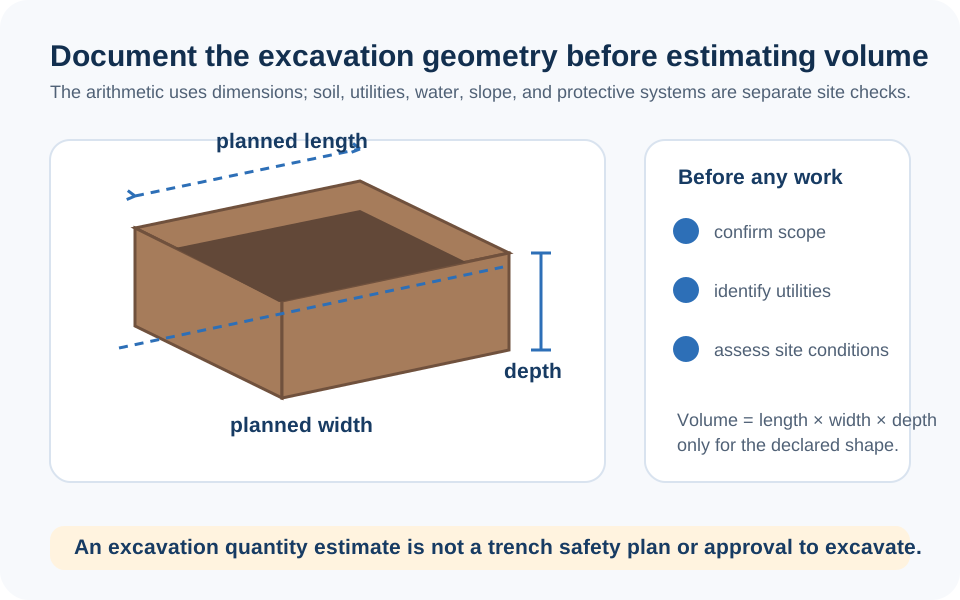
Diagram showing rectangular, trench, circular, and custom-area excavation geometry inputs with depth measured separately.
Use one geometric model for one measured zone; record irregular or differently deep zones on separate lines.

The calculator's in-place and loose-volume formulas

For a rectangular or trench zone, every measurement must be in feet before multiplication:

In-place excavation volume
ft³ = length (ft) × width (ft) × depth (ft)
yd³ = ft³ ÷ 27

The conversion is arithmetic, not an allowance. The current NIST Handbook 44 includes the measurement tables used to check unit conversions. For a circular zone the calculator uses pi × (diameter ÷ 2)2 × depth; for a custom-area zone it uses entered square feet × depth.

After that geometric result, the calculator applies the selected swell input:

Loose-volume planning result
loose yd³ = in-place yd³ × (1 + selected swell percentage ÷ 100)

That percentage is an input to a planning model, not a soil test. Keep the in-place figure and loose figure side by side because the calculator uses them for different follow-up estimates.

Use soil expansion, weight, and hauling outputs carefully

The interface offers soil labels and a swell control to make the loose-volume calculation visible. Treat them as editable starting inputs, not a claim that every soil with that name behaves alike. Moisture, material mix, breakage, handling, contamination, and the way a receiving facility describes material can all change the practical result. The calculator's weight output is also deliberately simple: it multiplies in-place cubic yards by the interface density value, rather than calculating payload from the loose volume.

The load result divides loose cubic yards by the selected truck capacity and rounds upward. That is a useful scheduling check, but a capacity label does not promise a legal or safe payload. A carrier may be limited by material weight, truck configuration, route, axle limits, site access, loading practice, or facility rules. Obtain the actual transport and acceptance information before booking a haul.

If the excavation will later be filled, do not assume removed volume equals imported material. An excavation can include working space, unsuitable material, grade changes, or other zones that are not the same as a specified fill zone. Use the Fill Dirt Calculator as a separate worksheet after the material and finished geometry are known.

Keep the optional cost section transparent

When enabled, the cost section follows the calculator's two-volume model. It multiplies the entered digging price by in-place cubic yards, and the entered hauling or disposal price by loose cubic yards. It then adds the labour and equipment amounts you enter. This can help you compare your own supplier or contractor numbers, but it cannot price a site automatically.

Keep a short record next to the result: quote date, material description, whether the supplier priced bank or loose yards, included distance, loading and unloading scope, disposal conditions, taxes, and any minimum or mobilization charge. That record is often more useful than a generic cost range because it explains why a revised estimate changed.

For an imported aggregate or concrete quantity that has already been specified, use the relevant Gravel Calculator or Concrete Calculator separately. Do not convert excavation cost into a material order by assumption.

Final boundary check before any digging or hauling

Before work, reconcile the calculator worksheet with the latest plan, field measurements, utility-location process, site access, responsible safety plan, carrier information, and disposal or reuse acceptance. In the United States, 811 Before You Dig explains the purpose of a utility-location request; elsewhere, follow the applicable local service and requirements. A quantity calculator cannot replace any of those steps.

Keep the result as a clear record of what was measured and what was assumed. If the geometry, soil input, material destination, or carrier changes, rerun the affected line instead of editing the final total by memory. Report an issue or unclear result if this calculator's arithmetic or explanation needs correction.

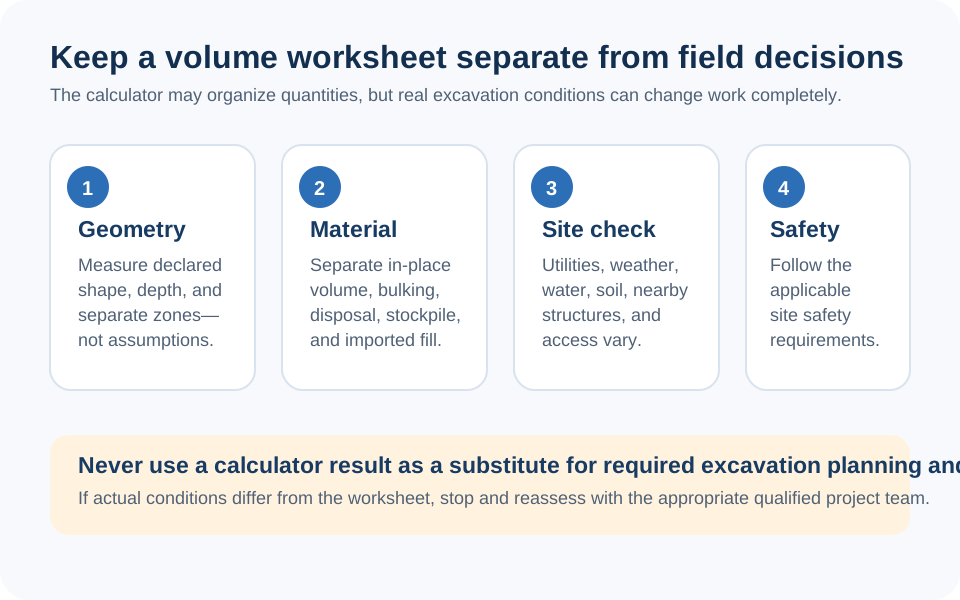
Checklist diagram separating the measured excavation limit, loose-volume input, carrier capacity, disposal quote, and safety decisions outside a quantity calculator.
A quantity result cannot approve a digging method, route a truck, select a disposal site, or make an excavation safe.
FAQ

Frequently Asked Questions

How does this Excavation Calculator calculate volume?
For a rectangle or trench, it multiplies the entered length, width, and depth in feet, then divides cubic feet by 27 for cubic yards. Circular and custom-area modes use their own visible geometry inputs, and footing mode also applies the entered quantity.
What is the difference between in-place and loose excavation volume?
In-place volume is the geometric volume calculated from the entered cut. Loose volume is the in-place cubic-yard result multiplied by the swell percentage selected in the calculator. They answer different planning questions and should not be substituted for one another.
Does the soil selector determine the correct swell factor?
No. It loads an interface category and editable starting percentage for the calculator's arithmetic. It is not a field soil classification, a test result, or a universal factor for a project.
Why does the calculator weight use in-place volume?
Its displayed model multiplies in-place cubic yards by the selected interface density. That is how this tool is coded; it is not a substitute for an actual scale ticket, material characterization, or vehicle payload check.
Can the calculator tell me how to make an excavation safe?
No. It is a quantity tool only. It cannot choose protective systems, slopes, benching, shoring, shielding, access, water control, utility precautions, or other safety measures.
Can I book trucks from the displayed load count?
Use it only as a preliminary selected-capacity calculation. Confirm the carrier's actual truck, payload limits, route, loading policy, material condition, site access, and receiving-facility rules before arranging transport.
Is excavated volume the same as the fill material I need?
Not automatically. Removed material and an imported fill zone can have different limits, materials, handling, and requirements. Calculate the documented fill geometry separately and confirm the material choice with the responsible project parties.
How can I report a calculator problem?
Use the site's contact page to report an arithmetic issue, unclear wording, missing source, or page problem. Include the values entered and the result you saw so the issue can be checked.

Related Calculators

Explore all Construction calculators →